Today we are celebrating Delphi’s 17th birthday – and 17 years of continuous innovation for the Delphi language, run-time library, Visual Component Library (VCL) and the new FireMonkey next generation business application platform.
To get here, was a long journey and lot of stuff happened. I remember in 1995 when I was developing an ERP with Paradox for Windows and a friend of my gave a CD and he said “Learn this product, it will change the software development world”, and I’m glad I did what he asked for .
The following links tells a little bit about Delphi history.
During this webinar we will have several Delphi experts and members of our R&D team showing great technologies using Delphi. I will be there as well showing something that I have been working for a while, the FireMonkey 3D Text Editor, during the webinar I will show you how it was created and share many tips & tricks related with FireMonkey development.
Bellow some screen shots of what I’m planning to show:
3D Text Editor in the IDE
The 3D Text Editor running on Windows, it runs on Mac as well
My monthly summary is back after long time, let’s try to keep this up to date every month
Jailbreak for iPhone 4S and iPad 2 finally available, hackers had a lot of work to break the new Apple A5 devices.
If you are interested to know how to use the Cloud to scale your applications, the Netflix team posted a really nice article sharing their experience with Amazon “Auto Scaling in the Amazon Cloud”
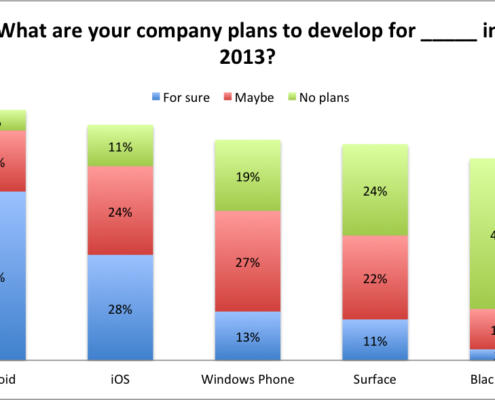
I’m a iPhone fun, maybe switching for Nokia Lumia 900 (Windows Phone) in the future, and Android is not part of my plan. A few weeks ago I saw this article “Why I Hate Android“, it is at least interesting.
The browser war continues, Chrome is winning and IE still the number one, not sure for how long
Delphi Open Source Project of the Month – DORM is an ORM framework for Delphi created by Daniele Teti
If you need to convert your Delphi and C++Builder VCL projects to FireMonkey, check out this solution called Mida a commercial product that convert VCL projects to FireMonkey
TMS Software releases TMS Instrumentation Workshop for FireMonkey, a set of components for instrumentation and multimedia applications for FireMonkey, it support Windows, Mac and iOS
Great opportunity for Embarcadero customers - BOGO is back!!! – Buy One Developer Tool, Get a Second Tool FREE!
Great post showing how to create FireMonkey shader effects
Today I was reading the article “Developers will flock to public cloud in 2012″, which pretty much goes over some of the results of Zend survey with 3,335 developers, and of course if not all of them the majority PHP developers.
This survey brings some interesting information, the first one related with the use of public cloud where 61 percent said they expect to use a public cloud for their projects.
And, of those going that route, 30 percent named Amazon Web Services as their public cloud of choice; 28 percent did not yet know which cloud they would use; 10 percent named Rackspace; and 6 percent cited Microsoft Azure. ”Other” public clouds came in at 5 percent and IBM Smart Cloud at 3 percent.
In terms of overall type of projects, 66 percent of respondents said they will be doing mobile development in 2012, this is a great opportunity for them to try RadPHP XE2 which bring integration with PhoneGap, components for jQuery Mobile and everything they need to optimize their web apps to mobile.
Also 45 percent said they will work on social media integration this year, if they are targeting Facebook another opportunity to try RadPHP XE2 and see how they can rapidly integrate web application with Facebook.
On the following video I’m showing how you can create DataSnap REST Server in Delphi, expose server methods and call them from an Android application. The video shows all the steps to create the server and the Android application.
This is a short recap of the video.
In order to have other platforms connecting and interacting with your DataSnap Server you need to enable the REST Interface, and for mobile platforms you can use the DataSnap Connectors that generate proxy classes for Android, BlackBerry, Windows Phone and iOS. In the video I’m showing how to create the Server, let’s take a look at the Server Method implementation.
The first server method called InsertCountry, connect on my InterBase database and add a new record to the Country table, see the implementation below:
function TServerMethods1.InsertCountry(Country, Currency: String;
out Error: String): Boolean;
var
Comm: TDBXCommand;
begin
Result := False;
DBConn.Open;
Comm := DBConn.DBXConnection.CreateCommand;
Comm.CommandType := TDBXCommandTypes.DbxSQL;
Comm.Text :=
Format('Insert Into Country (COUNTRY, CURRENCY) Values ( ''%s'', ''%s'')',
[Country, Currency]);
if not Comm.IsPrepared then
Comm.Prepare;
try
Comm.ExecuteUpdate;
Comm.Free;
Result := True;
except on E: Exception do
Error := E.Message;
end;
end;
The second server method is called GetCountries, and returns all the records I have in the COUNTRY table on my InterBase database. This method returns a DBXReader and DataSnap will convert this automatically to JSON at the moment the Android app calls this method, but since we will use the new DataSnap Connector to generate the proxy class, we won’t need to handle the JSON object and I will explain that after.
The following code represents the GetCountries implementation.
function TServerMethods1.GetCountries: TDBXReader;
var
Comm: TDBXCommand;
begin
DBConn.Open;
Comm := DBConn.DBXConnection.CreateCommand;
Comm.CommandType := TDBXCommandTypes.DbxSQL;
Comm.Text := 'Select * from Country';
if not Comm.IsPrepared then
Comm.Prepare;
Result := Comm.ExecuteQuery;
end;
The next step is to create the proxy class for Android using the DataSnap connectors, which is a new feature in Delphi XE2. The generation can be done through command line or via HTTP request on your DataSnap server, and in the video I’m showing how to do that.
The proxy generator generates only the DSProxy.java, all the other files part of the DataSnap Connectors are the representation of DataSnap Framework in Java, for example you won’t need to parse the DBXReader as JSON object in Java, just because we have the DBXReader class in Java and it parses the JSON object for you.
The first step to create a REST connection with your DataSnap Server, which will give me a instance of DSRESTConnection. If your DataSnap Server requires authentication you can use the methods SetUserName and SetPassword to define the credentials.
Now, let’s take a look and see how to execute the server methods, starting with the InsertCountry method as you can see in the following code.
After instantiation of the DSRESTConnection, we pass the REST connection object to the TServerMethods1′s instance, which is the client representation of TServerMethods1 on the server, and from there just call InsertCountry.
Since InsertCountry returns Boolean and also the Error message parameter is passed as reference, InsertCountry methods will return a InsertCountryReturns, which is a static class with two parameters: error that represent the error message and returnValue which represent the value return by InsertCountry.
The next method is GetCountries. We start as before by getting the DSRESTConnection instance. The GetCountries method returns a DBXReader and the way we work with the DBXReader class in Java is very similar the way we work in Delphi, use the Next method to interact through the result, and getValue/GetAsXXXXX to get the column value. See the following code:
protected void Refresh() {
DSRESTConnection conn = getConnection();
TServerMethods1 sm = new TServerMethods1(conn);
TDBXReader reader;
try {
reader = sm.GetCountries();
ArrayList COUNTRIES = new ArrayList();
while (reader.next()) {
COUNTRIES.add(reader.getValue("COUNTRY").GetAsString());
}
// Add the COUNTRIES array in to the list view
list.setAdapter(new ArrayAdapter(this, android.R.layout.simple_list_item_1, COUNTRIES));
} catch (DBXException e) {
e.printStackTrace();
}
}
This is just a short tutorial explaining how to use DataSnap Connector with Android, take some time and watch the video where I’m going through more details.
The source code is available for download here and download the video from here.
Here another C++ example showing how to use the RTL regular expression on C++BuilderFireMonkey Application.
This example validate a string content based on four different regular expression, which are:
Checks if the given text is a validate e-mail address
Checks if the given text contains a valid IP address
Checks if the given text is a valid date (dd-mm-yyyy)
Checks if the given text is a valid date (mm-dd-yyyy)
The follow code shows the four regular expressions used by this application.
void __fastcall TForm1::lbRegExpChange(TObject *Sender) {
switch (lbRegExp->ItemIndex) {
case 0:
lbType->Text = "E-mail for validation";
MemoRegEx->Text =
"^((?>[a-zA-Z\d!#$%&''*+\\-/=?^_`{|}~]+\\x20*" "|\"((?=[\\x01-\\x7f])[^\"\\\\]|\\\\[\\x01-\\x7f])*\"\\"
"x20*)*(?\.?[a-zA-Z\d!" "#$%&''*+\\-/=?^_`{|}~]+)+|\"\"((?=[\\x01-\\x7f])"
"[^\"\\\\]|\\\\[\\x01-\\x7f])*\")@(((?!-)[a-zA-Z\\d\\" "-]+(?)$";
break;
case 1: {
// Accept IP address between 0..255
lbType->Text = "IP address for validation (0..255)";
MemoRegEx->Text =
"\\b(25[0-5]|2[0-4][0-9]|[01]?[0-9][0-9]?)\\" ".(25[0-5]|2[0-4][0-9]|[01]?[0-9][0-9]?)\\."
"(25[0-5]|2[0-4][0-9]|[01]?[0-9][0-9]?)\\." "(25[0-5]|2[0-4][0-9]|[01]?[0-9][0-9]?)\\b";
break;
}
case 2: {
// Data interval format mm-dd-yyyy
lbType->Text =
"Date in mm-dd-yyyy format from between 01-01-1900 and 12-31-2099";
MemoRegEx->Text =
"^(0[1-9]|1[012])[- /.](0[1-9]|[12][0-9]|3[" "01])[- /.](19|20)\\d\\d$";
break;
}
case 3: {
// Data interval format mm-dd-yyyy
lbType->Text =
"Date in dd-mm-yyyy format from between 01-01-1900 and 31-12-2099";
MemoRegEx->Text =
"^(0[1-9]|[12][0-9]|3[01])[- /.](0[1-9]|1[01" "2])[- /.](19|20)\\d\\d$";
break;
}
}
EditTextChangeTracking(EditText);
}
To execute the validation you can use the method TRegExp::IsMatch as you can see bellow:
void __fastcall TForm1::EditTextChangeTracking(TObject *Sender) {
// EditText contain the string value and MemoRegEx the regular expression
if (TRegEx::IsMatch(EditText->Text, MemoRegEx->Text)) {
SEResult->ShadowColor = TAlphaColors::Green;
}
else
SEResult->ShadowColor = TAlphaColors::Red;
}
Since this is a FireMonkey Application, I used a Shadow Effect to show if the Edit box value is valid or not (Green=valid / Red=invalid). The following image shows what happen when you input a invalid e-mail address on Windows and Mac.
Now the results when you provide the correct e-mail address.
You can download the source code from here or just update your local RAD Studio XE2 samples folder from our RAD Studio SVN repository.
During the following weeks I’m writing a series of C++ examples to demonstrate the use of VCL, FireMonkey, RTL, dbExpress, and others stuff. Each example will have a major focus, but you will be able to learn other stuffs as well. If there is something specific on C++ you would like to see, please let me know and I will do my best to bring that in one of my following posts.
In this first post I demonstrate how to use dbExpress Framework to run SQL’s against your database. Since I want to run the application on Windows and Mac, the console application will target FireMonkey.
The Console Application Wizard for C++ has been updated in C++Builder XE2, adding a Target Framework Option as you can see below.
The following code shows how to connect to an InterBase database, execute a SELECT SQL against the COUNTRY table, and display the results, of course you can use dbExpress Framework to run queries against any database supported by dbExpress, just remember that some dbExpress drivers are not available on Mac in XE2, for example SQL Server and ODBC drivers.
If you are C++ developer you will understand pretty quickly the following code, which has some comments to help you to understand the code.
#include <fmx.h>
#pragma hdrstop
#pragma argsused
#include <tchar.h>
#include <stdio.h>
#include <System.SysUtils.hpp>
#include <Data.DBXDynalink.hpp>
#include <Data.DBXCommon.hpp>
#include <Data.DBXInterbase.hpp>
#include <memory>
int _tmain(int argc, _TCHAR* argv[]) {
// Get database connection instance
std::auto_ptr<TDBXConnection>conn
(TDBXConnectionFactory::GetConnectionFactory()->GetConnection
("EMPLOYEE", "sysdba", "masterkey"));
if (conn.get() != NULL) {
printf("================= Connection Properties ============\n");
AnsiString s = conn->ConnectionProperties->Properties->Text + "\n";
printf(s.c_str());
// create command and transaction objects to execute the query
std::auto_ptr<TDBXCommand>command(conn->CreateCommand());
// initiate a transaction
TDBXTransaction *transaction =
conn->BeginTransaction(TDBXIsolations::ReadCommitted);
command->Text = "SELECT * FROM Country";
command->Prepare();
// execute the query and get the cursor (DBXReader)
std::auto_ptr<TDBXReader>reader(command->ExecuteQuery());
// print number of columns and each record
printf(AnsiString("Number of Columns:" + IntToStr(reader->ColumnCount) +
"\n").c_str());
// display the list of records
while (reader->Next()) {
printf((reader->Value[reader->GetOrdinal("COUNTRY")]->GetAnsiString
() + "\n").c_str());
}
printf("====================================================\n");
conn->CommitFreeAndNil(transaction);
}
Sleep(5000);
return 0;
}
Before you run this code, make sure you have the dbExpress alias EMPLOYEE setup to connect into the EMPLOYEE.GDB database and the InterBase client installed, if everything is ok just compile and run the program on Windows and Mac, the following image shows this application running on Mac.
There are few things you need to be aware when deploying and running this kind of application on Mac; on my following post I will explain everything about that.
For now we’ve learned how to use DBX Framework and make the application to compile and run on Windows and Mac.
You can download the source code from here or just update your local RAD Studio XE2 samples folder from our RAD Studio SVN repository.
It’s Christmas, a special day to all of us and the time to have our families together and celebrate.
To all my blog readers Merry Christmas!!
In a few days starts a new year, and now is time to review our achievements, mistakes and successes in 2011, make plans to improve, set new goals and be ready to achieve all of them in 2012.
I wish you a prosperous new year and in 2012 you can have the most amazing year of your life.
As part of the 31 days of RAD Studio XE2 Tutorials, in today’s video I’m showing how you can create DataSnap REST Server in C++Builder, expose server methods and call them from an Android application. The video shows all the steps to create the server and the Android application.
This is a short recap of the video.
In order to have other platforms connecting and interacting with your DataSnap Server you need to enable the REST Interface, and for mobile platforms you can use the DataSnap Connectors that generate proxy classes for Android, BlackBerry, Windows Phone and iOS. In the video I’m showing how to create the Server, let’s take a look at the Server Method implementation.
The first server method called InsertCountry, connect on my InterBase database and add a new record to the Country table, see the implementation below:
The second server method is called GetCountries, and returns all the records I have in the COUNTRY table on my InterBase database. This method returns a DBXReader and DataSnap will convert this automatically to JSON at the moment the Android app calls this method, but since we will use the new DataSnap Connector to generate the proxy class, we won’t need to handle the JSON object and I will explain that after.
The following code represents the GetCountries implementation.
The next step is to create the proxy class for Android using the DataSnap connectors, which is a new feature in C++Builder XE2. The generation can be done through command line or via HTTP request on your DataSnap server, and in the video I’m showing how to do that.
The proxy generator generates only the DSProxy.java, all the other files part of the DataSnap Connectors are the representation of DataSnap Framework in Java, for example you won’t need to parse the DBXReader as JSON object in Java, just because we have the DBXReader class in Java and it parses the JSON object for you.
The first step to create a REST connection with your DataSnap Server, which will give me a instance of DSRESTConnection. If your DataSnap Server requires authentication you can use the methods SetUserName and SetPassword to define the credentials.
Now, let’s take a look and see how to execute the server methods, starting with the InsertCountry method as you can see in the following code.
After instantiation of the DSRESTConnection, we pass the REST connection object to the TServerMethods1′s instance, which is the client representation of TServerMethods1 on the server, and from there just call InsertCountry.
Since InsertCountry returns Boolean and also the Error message parameter is passed as reference, InsertCountry methods will return a InsertCountryReturns, which is a static class with two parameters: error that represent the error message and returnValue which represent the value return by InsertCountry.
The next method is GetCountries. We start as before by getting the DSRESTConnection instance. The GetCountries method returns a DBXReader and the way we work with the DBXReader class in Java is very similar the way we work in C++, use the Next method to interact through the result, and getValue/GetAsXXXXX to get the column value. See the following code:
protected void Refresh() {
DSRESTConnection conn = getConnection();
TServerMethods1 sm = new TServerMethods1(conn);
TDBXReader reader;
try {
reader = sm.GetCountries();
ArrayList COUNTRIES = new ArrayList();
while (reader.next()) {
COUNTRIES.add(reader.getValue("COUNTRY").GetAsString());
}
// Add the COUNTRIES array in to the list view
list.setAdapter(new ArrayAdapter(this, android.R.layout.simple_list_item_1, COUNTRIES));
} catch (DBXException e) {
e.printStackTrace();
}
}
This is just a short tutorial explaining how to use DataSnap Connector with Android, take some time and watch the video where I’m going through more details.
The source code is available for download here and download the video from here.
Hi everyone, there are certain things we cannot let go and need to be mention. During the whole year I try to keep my blog posts about software development and other related technologies, but this time I need to mention what is going on here at Embarcadero. Upgrading to Delphi XE2, C++Builder XE2 or RAD Studio XE2 by December 30, 2011, you can get up to $2,935 (USD) in additional tools free! Also you are eligible to take one Delphi Developer Certification test free of charge.
Recent Comments